> ## Documentation Index
> Fetch the complete documentation index at: https://docs.speakglass.com/llms.txt
> Use this file to discover all available pages before exploring further.
# Discord
> Speak with real people in our Discord community using Glass.
## Overview
 Discord is the easiest way to practice with real people in our community. You can meet language partners from different countries, join voice channels instantly, and jump into real conversations. By using Glass during these sessions, you learn naturally through live interactions rather than scripted practice.
## How it works
Discord is the easiest way to practice with real people in our community. You can meet language partners from different countries, join voice channels instantly, and jump into real conversations. By using Glass during these sessions, you learn naturally through live interactions rather than scripted practice.
## How it works
 3. In Glass, click **Start Call**.
4. Select [**Real Talk Mode.**](/essentials/real-time-suggestion)
5. Join a voice channel in the Glass Discord server (or any voice channel in your own server).
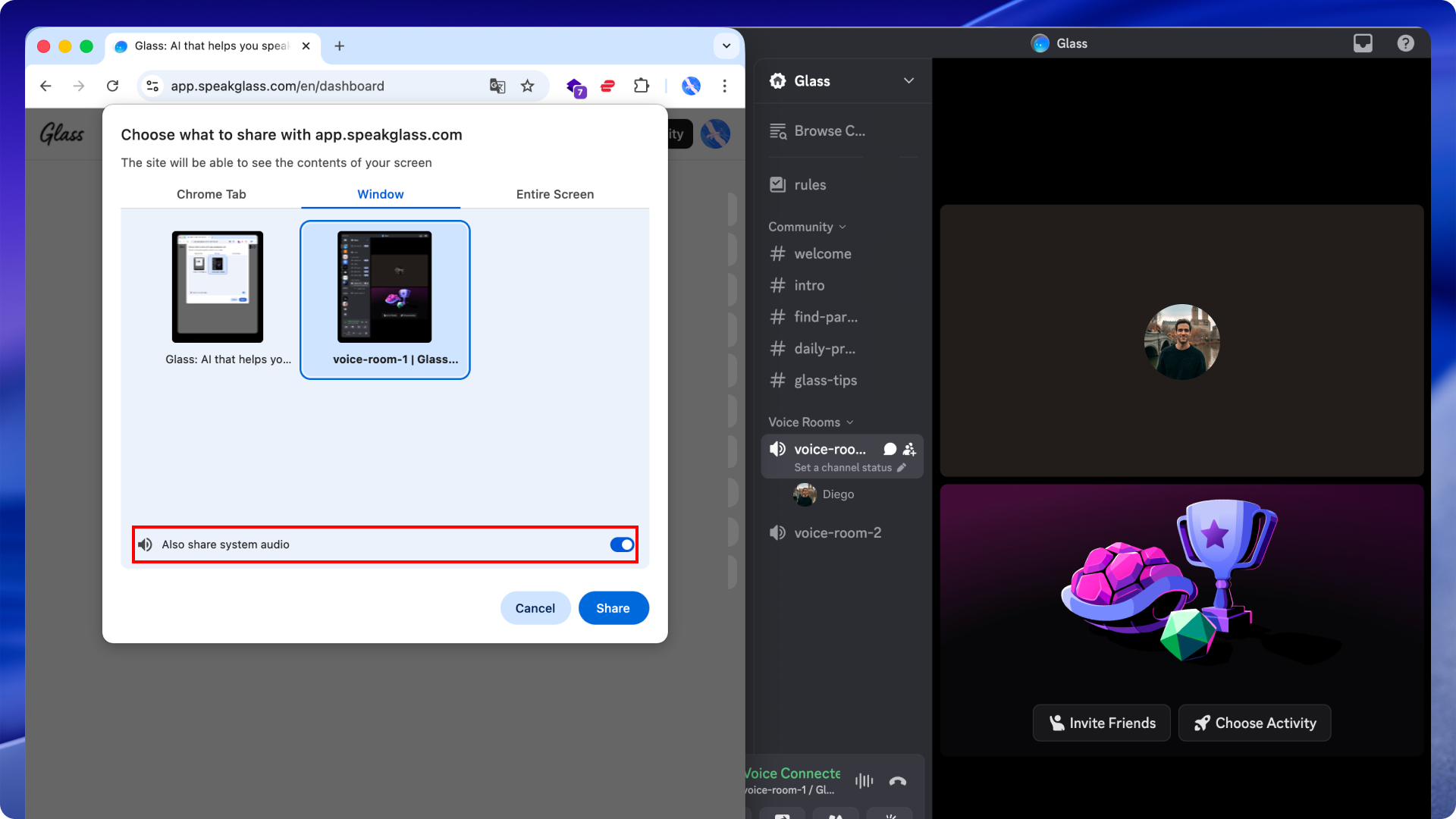
6. When the screen-share window appears, **select your Discord window** and turn on the **Share system audio** toggle.
7. Keep Glass and Discord open side by side and start your conversation.
3. In Glass, click **Start Call**.
4. Select [**Real Talk Mode.**](/essentials/real-time-suggestion)
5. Join a voice channel in the Glass Discord server (or any voice channel in your own server).
6. When the screen-share window appears, **select your Discord window** and turn on the **Share system audio** toggle.
7. Keep Glass and Discord open side by side and start your conversation.